


Vmake Labs: create viral video
4.1870.00 Reviews
App Specs
- Version
- 3.14.0
- Updated On
- License
- Free
- Downloads
- 5,000,000+
- Developer
- Starii Tech Pty Ltd
- Categories
- Video Players & Editors
- Platform
- Android, iOS
Screenshots
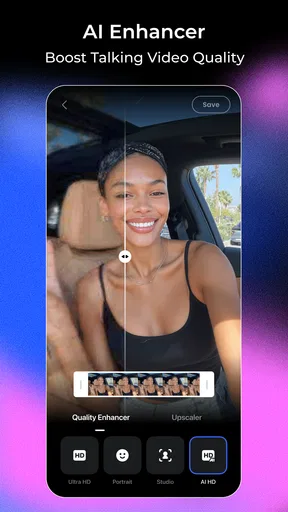
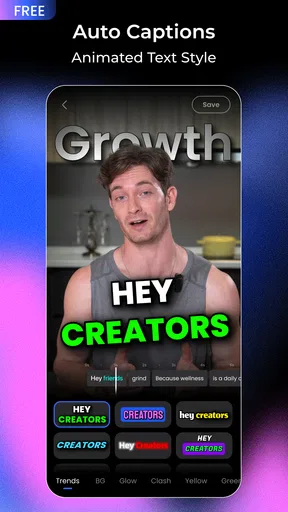
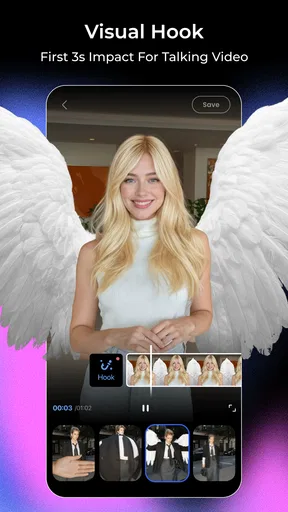
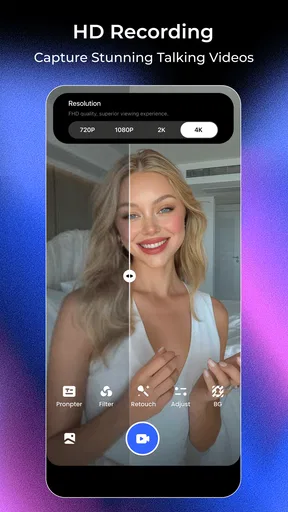
 Analysis by AppCompare
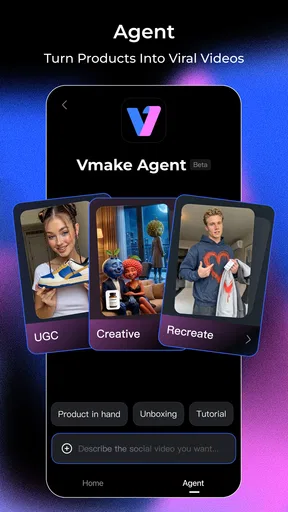
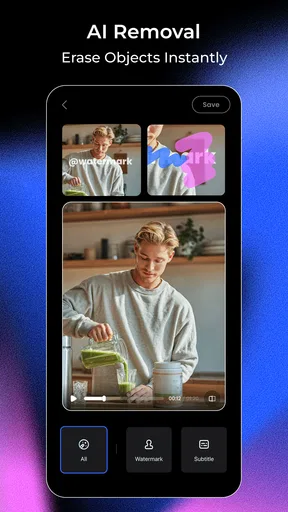
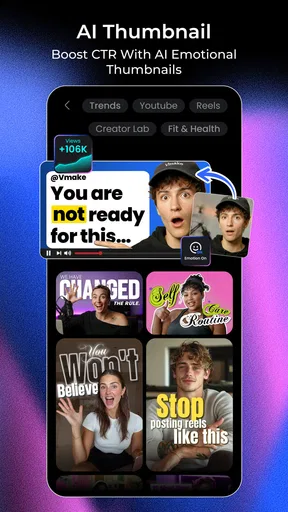
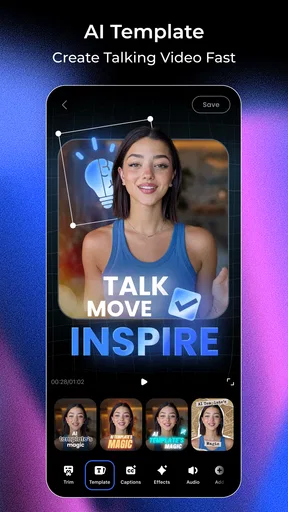
My first week with Vmake: AI Talking Video Editor would be about finding out which of its AI-assisted tools actually save me time, rather than trying every effect for novelty’s sake. It’s a free video-editing app from Starii Tech Pty Ltd, and its mix of captions, thumbnail creation, enhancement, templates, and talking-video tools gives it a broader focus than a simple clip trimmer. I’d treat it as a quick creative workspace for social content, not as a replacement for every kind of editor.
What makes a useful first project
I’d begin with a short clip that has clear speech and a specific purpose: a product demonstration, a quick recipe tip, or a direct-to-camera update. That gives the captioning and editing tools something practical to solve. Starting with a clean source also makes it easier to spot when an automated result needs correction; if the original audio is noisy or people speak over one another, I would expect to spend more time checking captions instead of less.
A sensible first-week test is to make two versions of the same idea. One can use a template to get a fast, finished look, while the other keeps the edit simple and lets the footage do the work. Comparing them helps answer a more useful question than “Which effect is fun?”: does a Vmake treatment make the message clearer, or just busier? For a small creator, that distinction matters because viewers usually need to understand the point before they notice the polish.
Where the tool can earn a place in a routine
The app is most convincing when several small tasks belong to the same video. Captions can make spoken content easier to follow without sound; a thumbnail gives a post a clearer visual entry point; enhancement can help footage that needs a little attention. I like that this combination points toward a repeatable workflow: prepare a clip, make its words readable, choose a useful cover image, and export a version that suits the intended platform.
That workflow is different from opening a traditional editor for every tiny adjustment. A full desktop editor is often better when I need detailed control over timing, color, sound mixing, or a complex sequence. Vmake’s appeal is the shorter path from a phone clip to a presentable social video. If I only publish occasionally, though, convenience may not justify keeping another editing app in regular rotation; the value depends on whether I have recurring clips to process.
A realistic everyday use
Imagine I record a quick explanation after testing a kitchen gadget, then want to share it while the idea is still fresh. I can use the footage as the base, add captions so the key steps remain understandable when someone watches silently, and create a thumbnail that communicates what the clip is about. If the first caption pass mishears a name or a short technical term, I should review it before posting rather than assuming the AI has understood the context. A few careful corrections are less work than publishing an avoidable mistake.
For a small shop or a solo creator, this kind of repeatable job is a better fit than a one-off cinematic project. A batch of short demonstrations or weekly updates gives the template and caption workflow a chance to save time more than once. I would still keep an original copy of important footage and check the finished video before sharing. That simple habit protects the source material and catches awkward crops, text that covers the subject, or a visual treatment that distracts from the message.
Worth Reading Before You Choose

EA SPORTS FC Mobile 26 Is a Bigger Football Game, but It Takes Time

Flipboard Shows What News Apps Must Do Beyond the Feed

Switching to Android Auto Means Rethinking Your Driving Routine

Google Calendar Makes a Crowded Week Easier to Manage

Ludo King Makes the Most of the Minutes Between Plans

Baby Panda World Brings Quick Play to Modern Phones, but Its Game Library Feels Busy
How I’d judge the AI rather than trust it
Automated captions are a starting point, not a proofreader. Speech recognition can stumble over names, slang, accents, or overlapping voices, so I’d play the complete clip with the text visible and correct anything that changes the meaning. Short sentences and clear speech give the tool a better chance; recording in a quieter spot is often a more useful improvement than trying to rescue difficult audio later. For interviews, I’d also check that each speaker’s words are attributed clearly enough for the viewer to follow.
Templates involve a similar trade-off. They can help a new user move past a blank screen and produce a consistent look, but using the same visual treatment for every post can make a feed feel repetitive. I’d keep a small number of styles for different purposes rather than applying whichever option looks most dramatic. A restrained template is often the better choice for instructions or product details, where the audience needs to see the subject and read the message without competing decorations.
First Impressions
Jumping into Vmake was like stepping into a candy store for video enthusiasts. The interface is sleek, intuitive, and doesn’t require a PhD in engineering to navigate. You’re greeted with a friendly welcome screen that quickly guides you to start your first project. What I found impressive right off the bat was how user-friendly it is, even for someone who’s not exactly tech-savvy.
Getting Started
Once I started a new project, I was amazed by the range of features packed into this little app. From basic trimming and cutting to advanced AI-driven features, it’s got it all. The AI capabilities are what really set this app apart. It can automatically generate captions, sync speech to text, and even animate characters to talk as if they’re in a Pixar movie. Seriously, it’s like having a mini production studio right in your pocket!
AI Magic
Now, the AI bit is where Vmake really shines. I uploaded a video of my dog trying to talk (cute, but not exactly coherent), and the app worked its magic. It suggested captions and synced them with the video perfectly. The AI can detect different voices and apply distinct captions to each, which is perfect for interviews or multi-person vlogs.
"The AI can make even your pet’s ramblings look like a TED Talk."
Editing Features
Beyond the talking video gimmick, the editing tools are pretty robust. You can add filters, adjust brightness, and even play around with some more complex options like chroma key (that’s the fancy green screen effect for those who aren’t in the know). Plus, the app supports multiple layers of audio and video, so you can mix and match to your heart’s content.
Choosing the right amount of editing
Those layers are most helpful when they serve a clear purpose: a voice track over footage, a supporting visual, or a background that makes the subject easier to see. They can also make a quick phone edit feel more involved than expected. I’d build the main cut first, then add only the layers that improve clarity. If the project depends on precise timing across many clips, a larger editor with a timeline designed for detailed work may feel more comfortable than editing on a small screen.
Chroma key is another feature where the recording matters as much as the effect. A clean, evenly lit background is easier to work with than one full of shadows or colors close to the subject. I wouldn’t rely on a green-screen option to fix a poorly prepared shot; it is better viewed as a creative shortcut when the footage is suitable. For ordinary talking-head videos, a simple background may look more natural and take less effort.
Sharing is Caring
After crafting your masterpiece, sharing it is a breeze. Vmake offers direct upload options to all the major social media platforms. With just a tap, your video can be live on Instagram, TikTok, or wherever your followers are waiting. This makes it super convenient for content creators who want to keep their audience engaged with fresh content.
What to check before making it a habit
For anyone deciding whether to use it regularly, the practical questions are about fit and cost. The app is free to install, but it includes in-app purchases ranging from $1.99 to $209.99 per item. I’d explore the free experience first and only consider paying if a tool I repeatedly need is clearly behind a purchase. The wide range makes it especially sensible to check the price attached to a specific item before committing, rather than assuming every feature is included at no cost.
It is rated for Everyone, has a 4.3 average from around 13,000 ratings, and has been installed over a million times. Those figures suggest that it has found an audience, but they don’t tell me whether its workflow suits my own projects. I’d judge that by whether I can finish a real clip without fighting the interface, and whether the output looks right after I watch it outside the editor. The current version is 3.2.0, and the app supports Android 8.0 and later.
On a phone, export and sharing are only the final part of the job. I’d also leave time to watch the complete result at normal speed, with sound and without sound, before posting. That catches issues that are easy to miss while scrubbing: captions appearing too early, a crop cutting off a face, or an edit that feels rushed. If a platform needs a particular framing, I’d make that choice before adding text so important words do not end up near an edge.
Little Things Matter
One of the things that really stood out to me was the attention to detail. The app offers tutorials and tips throughout, which is a nice touch. It’s like having a little guide on your shoulder, making sure you’re not missing out on any cool features. And the customer support? Top-notch. They’re quick to respond and genuinely helpful, which is pretty rare these days.
Who benefits most—and who may prefer another editor
I’d recommend Vmake to someone who regularly makes short, speech-led videos and wants captions and visual finishing tools close to the editing process. It should also suit a beginner who wants a guided way to experiment with templates and AI-assisted ideas rather than learning a complicated editing interface first. For a small business owner filming product tips between other tasks, the ability to prepare a clip on a phone can be more useful than a deep set of controls that rarely gets used.
I would look elsewhere if my main goal were a carefully produced film, detailed audio work, or precise control over a long sequence. A conventional video editor is a better choice when every cut, transition, and sound level needs hands-on adjustment. Likewise, if I rarely make videos, a phone’s built-in editor may already cover trimming and basic sharing without adding another app to maintain. Vmake’s difference is the combination of AI-focused tools, not a reason to move every editing task into it.
Maintenance, repetition, and creative fatigue
The easiest way to keep the app useful is to give it a narrow job. I’d use it for recurring short videos, save a simple process I can repeat, and avoid turning each upload into a hunt through every effect. That habit reduces decision fatigue and makes it easier to notice whether the tools genuinely improve the result. If a template or enhancement takes longer to adjust than the video deserves, I’d skip it; not every clip needs a polished treatment.
There is also a maintenance cost in checking AI output and keeping a consistent visual identity. Captions need a final read, and a set of templates can become stale if every post looks the same. I’d periodically review the finished clips as a group, not just one at a time, to see whether the repeated style still feels like mine. This is a useful check for creators who publish often: a tool that speeds up individual edits can still make the overall feed less distinctive if its defaults do too much of the creative work.
The app’s broader promise can be a source of fatigue, too. A menu full of creative possibilities is exciting at first, but it can turn a simple edit into unnecessary tinkering. I’d decide the goal before opening a project—make the speech clearer, create a stronger cover, or improve the image—and stop once that goal is met. That keeps novelty from becoming a chore and helps the app earn space through reliable, repeatable usefulness rather than the thrill of trying a new effect once.
Room for Growth
While Vmake is pretty fantastic, it’s not without its quirks. Occasionally, the AI can be a bit too enthusiastic and suggest captions that are slightly off. But hey, no one’s perfect, right? Plus, the app could benefit from more frequent updates to keep up with the latest video trends.
That limitation is worth keeping in perspective. A captioning suggestion can save time only if I still review it, and an automated look cannot decide whether a joke lands or whether a product claim is clear. The human part remains important: I choose the message, check the wording, and decide whether the visual treatment suits the audience. For sensitive, technical, or business-critical content, I would be especially careful to proofread every caption rather than treating speed as accuracy.
Overall, Vmake: AI Talking Video Editor is a delightful tool for anyone looking to spice up their video content with minimal effort. Whether you’re a seasoned video editor or just someone who likes to dabble, this app offers something for everyone. It’s fun, easy to use, and creatively liberating. So, go on, give it a try and see where your imagination takes you!
Does it deserve a lasting place?
For me, the answer depends less on how entertaining the first session feels and more on whether I keep making the kinds of videos its tools are built to help with. A creator who publishes regular spoken clips can get recurring value from captioning, thumbnail work, and quick visual adjustments. Someone who edits only once in a while may find the initial novelty fades before those conveniences become part of a routine.
I’d give it a practical trial with a real task rather than a showcase project: prepare a short clip I already need to share, check the captions carefully, and decide whether the finished result took less effort than my usual approach. If it does, Vmake has a credible place in a mobile creator’s toolkit. If I spend more time exploring options, correcting automation, or working around a small-screen workflow than I save, a simpler editor—or a more precise desktop one—would be the better long-term choice.
Pros
- Intuitive interface for easy navigation.
- Offers realistic AI-generated voices.
- Supports multiple video formats.
- Quick processing and export times.
- Includes a variety of editing tools.
Cons
- Watermark on free version exports.
- Limited voice options in free tier.
- Occasional app crashes reported.
- Requires stable internet connection.
- Some features behind paywall.
FAQs for Vmake Labs: create viral video
What is Vmake: AI Talking Video Editor and what can it do?
Vmake: AI Talking Video Editor is an innovative app designed to enhance video creation using AI technology. It allows users to create talking videos by animating images with speech synthesis. The app is perfect for content creators looking to produce engaging videos with minimal effort, using advanced AI to animate characters and synchronize lip movements with audio.
Is Vmake: AI Talking Video Editor free to use or does it require a subscription?
Vmake offers a free version with basic features, allowing users to explore its capabilities. However, to access premium features such as advanced AI animations, higher resolution exports, and additional customization options, a subscription may be required. Users can choose from various subscription plans based on their needs.
What are the system requirements for running Vmake on my device?
To run Vmake: AI Talking Video Editor smoothly, ensure your device meets the necessary system requirements. For Android, devices should be running Android 8.0 or higher, while iOS devices need iOS 12.0 or later. Adequate RAM and storage space are also recommended for optimal performance, particularly when handling high-resolution videos.
How user-friendly is Vmake for beginners?
Vmake is designed with user-friendliness in mind, making it accessible even for beginners. The intuitive interface guides users through the video creation process, with tutorials and tips available within the app. Even those new to video editing will find it easy to create professional-looking talking videos with minimal learning curve.
What kind of support is available if I encounter issues with Vmake?
Vmake provides comprehensive customer support to assist users with any issues they may encounter. Support options include a detailed FAQ section within the app, email support for direct inquiries, and community forums where users can share experiences and solutions. Premium users may also have access to priority support services.


